Pages

How to Find a Good Free WordPress Theme

 One of the great things about WordPress is that you can create a professional website without investing a ton of money. Beyond the cost of hosting and a domain name, you can build a site pretty much for free.

This makes WordPress a very attractive and affordable option for users who want to validate the success of their site before they start investing a ton of money.

However, the WordPress free library is massive, and not every theme is worth installing on your site. 

Sometimes, a low-quality theme can end up doing more damage than good, and lead to poor website performance and even leave you open to security risks. Still, you can avoid these risks by educating yourself on the steps you can take to find a high-quality free theme.

Below we dive deep into how you can find the absolute best free WordPress theme for your needs, the risks you need to look out for, and how you can install and start customizing your shiny new theme.  

Free vs Premium WordPress Themes: What’s the Difference, and Does It Matter?

The focus of this post is on free WordPress themes, but it’s still important to understand how the premium theme marketplace works and the main differences between free and premium themes.

Free themes are easy to understand. They’re an entirely free WordPress theme that you can install on your site and start customizing. Usually, they aren’t as feature-rich as a premium theme, but they can get the job done if you don’t require an extensive set of features.

Premium themes typically have a higher-quality design, and a much larger feature set. You’ll also get access to a premium support team to help walk you through any website issues, and you get access to premium theme updates.

Free themes are a great starting place for the majority of website owners. They’re often easier to set up and give you the chance to experiment with WordPress without putting any money down. 

How to run Auto-SSL manually

A free SSL certificate for your domain can be installed at any time within cPanel. Your website will receive automatically a free SSL certificate after 12-24 hours, however requesting the certificate manually will install it immediately.

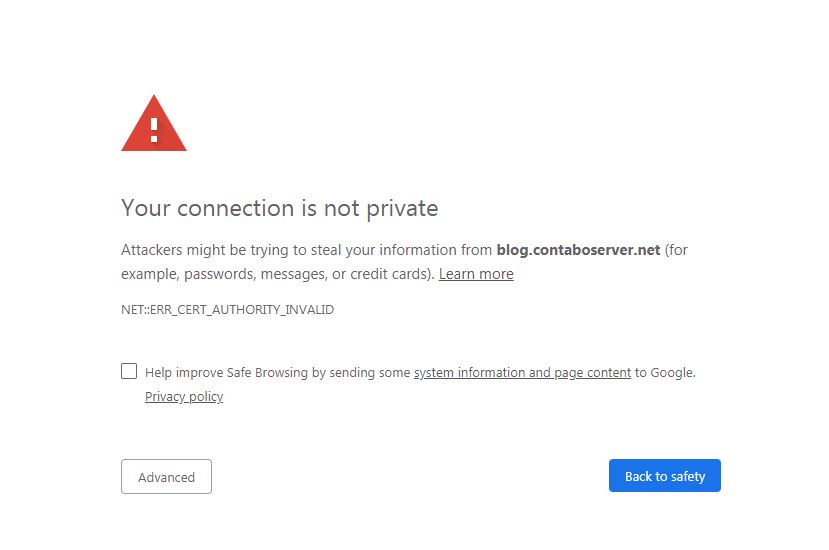
In case your browser shows the following warning when accessing your website via https:// the SSL certificate might not be installed yet.

In order to request the certificate manually you need to login to your cPanel account, the login information was sent to you via E-Mail before.

How to save time with Control Panels


If you have a server (for example one of our VPS, Virtual Dedicated Servers or a Dedicated Server) you might ask yourself “Do I need a control panel like Plesk or cPanel, or not?”.
As the answer is not as easy as “YES” or “NO”, we are going to elaborate on why we think using a control panel is beneficial.

Direct start

If you order a server with Linux or Windows pre-installed, you will have to configure all tools by yourself. You need to install for example Apache, maybe add and configure nginx on top of it. Then install and set up the mail server. If you want to run databases, you have to install mySQL or MariaDB as well. For easy management, you might want to install phpMyAdmin on top. And of course, you want to be able to upload files as well, so an FTP server is needed, too.

If you do this on a daily basis, you should be able to have it up and running within some hours. But if you only do it every other year or have never done it before, it might take some days until you have everything installed and configured.

In addition to installing everything manually, your setup might also change from installation to installation. With most control panels, the setup is tested accordingly to a quality assurance and quality control (QA/QC) process with all components, and the recommended, standard installation will always be based on best practices. Also, the setup process includes all needed components and configures them automatically.

Less interaction per SSH or RDP

After the first steps, you might have to change some configurations or you have to install new components. For this, you have to connect to the server directly (on Linux normally per SSH and on Windows with RDP). While this is for some people the daily business, other people might struggle with it and might fear doing something wrong.

Updates

As we all know, keeping your server updated is very important, for both security and feature availability reasons. You could either do it yourself, or rely on a control panel to take care of updating the operating system.

Security

Even though your system is up2date, it could still face security issues due to misconfiguration. For example, the mail server might allow anyone to relay mails through it. Or you have a weak password and someone might be able to hack it via brute force. Many control panels come with secure pre-configured services and pre-installed tools to prevent brute-force attacks (e.g. with fail2ban).

Backups

It’s not only about Security but also about Backups. You could choose to run your own backup scripts, or you can use the built-in Backup routines of a control panel.

Monitoring and Logfiles

It’s always important to monitor your server. Are all services up and running? Is there enough space left on your hard disk? You might also have to check logfiles for debugging reasons. Both tasks (monitoring and checking logfiles) could either be done manually by you, or you could simply use a control panel, which offers internal monitoring of the services (and maybe automatically restarts the services). For logfiles, an integrated logfile-browser is a great way to debug any kind of problem you might face.

SSL Certs

The installation of an SSL Certificate is another example where a control panel saves a lot of your time. Without a control panel, you will need to install openssl. Then you need to generate a private key and a Certificate Signing Request (CSR). With this CSR you could go to your hosting provider and order a valid SSL Certificate. Based on the type of SSL Certificate, you need to confirm an email or hand in other documents.

Another alternative is Let’s Encrypt. Let’s Encrypt offers free certificates which are valid for 3 months. For this, you need to install Let’s Encrypt and configure it with your existing webserver. In addition, you need to set up a renewal process, so that all certificates get renewed automatically.

With many control panels, you can directly receive free SSL certificates which will be automatically renewed as well. If you want a different kind of SSL certificate (e.g. one which turns your browser bar green), you can generate all the needed files directly from the control panel.

Manage yourself and your customers

Adding new customers and managing them; configuring new mailboxes, changing passwords, creating mySQL users and databases – without a control panel, all these tasks must be done manually.

With a control panel, your customers can handle such tasks themselves. They can easily change things on their own, which saves time and resources for both you and your customers.

In addition, with service templates, you could ensure that the setup of new customers is always completed with the same rights and resources.

PHP versions

Based on w3techs.com, PHP is used by 79% of all the websites they scan. One of the most important topics with PHP is to stay always up2date and to be able to change the version per website. Without a control panel, you will have to do this always manually with the webserver configuration, which is way more time consuming and error-prone.

Applications and Add-ons

Applications like WordPress, Typo3, and Magento often have a long installation and configuration process: Getting the sources, setting up the database, installing it, configuring it, and so on. Many tasks need to be done even before you can start doing what you want to do. In addition, most applications have to be secured, which will take additional time as well. Most control panels have a convenient one-click installer for all common applications.

Conclusion

As you can see there are many reasons to use a Control panel, depending on your own use case.

At LikisaHost, we offer you 3 different control panels: cPanel, Plesk and Webmin. While Webmin is free of charge, it is at the same time less comfortable to manage you and your accounts. Eventually, your choice of a certain panel also depends on your operating system: cPanel can only be combined with CentOS, whereas Plesk can also be used with Ubuntu, Debian, and Windows Server.

What is more, at LikisaHost you can exclusively test Plesk one month for free and see for yourself if it fits your needs and meets your expectations!
Configuring additional IP addresses to VPS

 Upon ordering a Dedicated Server or VPS you will receive one IPv4 address and one /64 IPv6 subnet. As an example, this could be the IPv4 address 192.51.100.10 and the IPv6 subnet 2001:0db8:2a02:c200::/64.

Your server comes pre-configured with this IPv4 (192.51.100.10) and one IPv6 address (2001:0db8:2a02:c200:0000:0000:0000:0001). Additional IPv4 addresses can be ordered by contacting us at support@contabo.com or through our homepage when placing an order for a new server. These additional IPv4 addresses will not be added to your system automatically but will have to be configured manually.

The following will give an overview on how to configure additional IP addresses on the most popular operating systems. The server used in these examples has the primary IPv4 address 192.51.100.10 and will receive the additional IPv4 addresses 192.51.100.42 and 192.0.2.23. As a general rule we recommend configuring these addresses with a netmask of 255.255.255.255 (/32) and /64 respectively and without adding a new gateway.

Arch Linux

The network configuration file of Arch Linux is stored under /etc/systemd/network/eth0_STATIC.network. For configuring additional IPv4 addresses, it is sufficient to add further Address= entries at the end of the file.

#/etc/systemd/network/eth0_STATIC.network
[Match]
Name=eth0
[Network]
Address=2001:0db8:2a02:c200:0000:0000:0000:0001/64
Gateway=fe80::1
DNS=2a02:c207::1:53
Address=192.51.100.10/24
Gateway=192.51.100.1
DNS=213.136.95.11
DNS=213.136.95.10
Address=192.51.100.42/32
Address=192.0.2.23/32

Further IPv6 addresses can be added similarly:

#/etc/systemd/network/eth0_STATIC.network
...
Address=2001:0db8:2a02:c200:0000:0000:0000:0002/64
Address=2001:0db8:2a02:c200:0000:0000:0000:0003/64
...

To apply the changes, reboot your server.

Ways To Improve The Quality Of Your Website


In this Digital era, websites have become more of a compulsory to businesses than anything else. The reason is that they are used as a marketing tool and help to create business awareness to the public. Despite creating awareness, a website also acts as a sales tool, where most companies and businesses carry out their trade. How do you improve its quality for more engagements? We'll give details on this article. Below are some of the ways you can improve its quality:

1. Check its content and quality

It's the 21st century. No one will love a website with dull, outdated content. If your site contains content that is not good and boring, then that's one reason why you are not getting much traffic. A good website should have original, informative, and engaging articles. Why is it so? There is a lot of competition online. Everyone is pulling crowds here and there to ensure maximum traffic is achieved on their portals. If yours is not at par, you need to pull up and provide better content for your audience.

2. Adjust its readability

How smooth is your website when it comes to readability? Is it comfortable to read to the target audience? When it comes to improving your site’s readability, you must start with the headline. Is it unique? Does it attract viewers and readers? If not so, adjust it to be appealing. How do you do this?

You can use several online headline checkers to give you suggestions on what to use and what to ignore. More often than not, working around to improve the site’s readability may prove challenging. It’s for this reason that professionals from Uplift 360 recommend that you get the help of a qualified individual to do everything for you. Involving a professional assures clean and effective results. Besides, involving a pro saves time as he or she is aware of what to do from the point go.

3. Always show statistics and information

When people log into your website, they will be happy to find information and statistics that are well-researched and help them solve their issues. The vice versa will happen if your site is dull with inaccurate information, including details like information graphs, charts, and other statistics that will significantly influence your website's quality and attract more visitors. You can create statistics on the information shared from your site and share it on social media to attract more audience.

4. Choose a better opt-in box

A website is like a marketing tool and not any other form of communication feature. One of the ways to get clients to sign up for gifts or newsletters from your website is to utilize a well-designed opt-in box. How do I do it? Get a colorful, well designed opt-in box. Ensure every visitor sees this box every time they login and should be well-designed and presentable to capture more audiences. To get the best for this, do maximum research and check on what other websites are doing. Get an idea and apply it to your website. If you have a budget, hire a professional who will fine-tune your site, giving you the best look and engaging boxes to your audience.
Technology has changed the way people conduct things, including marketing and client engagement. Having a website is one of the essential elements of the business world. Ensure your website is of quality and attracts more traffic or stays on top of the competition. This article has come right on time to guide and assist you in transforming your website from an essential one to a quality one.